Optimizing Network Performance: A Quick Guide to Checking Your pfSense Dashboard

In today’s fast-paced digital world, a reliable and speedy internet connection is crucial. If you’re experiencing a drop in your internet speed, there might be a simple solution lurking within your network setup. In this brief guide, we’ll show you how to quickly diagnose potential issues using your pfSense dashboard, ensuring that your network is operating at its full potential.

Step 1: Access Your pfSense Dashboard

To get started, make sure you have access to your pfSense dashboard. You can usually do this by opening a web browser and entering the IP address of your pfSense router. Once you’re logged in, follow these steps.

Step 2: Check Interface Connections

Navigate to the “Interfaces” section of your pfSense dashboard. Here, you’ll find an overview of how your ports are connected. It’s essential to confirm that all ports are configured to their maximum speed. In a network setup with a maximum of 1000baseT full-duplex, ensure that all ports are set to this speed for optimal performance.

Step 3: Verify Port Speeds

If you notice a sudden drop in your internet speed, the first thing to check is whether all ports are still operating at their fastest speed. A simple misconfiguration can cause ports to revert to lower speeds, which can drastically impact your network’s performance. If any ports are not set to the maximum speed, adjust their settings accordingly.

Step 4: Monitor CPU and Memory Usage

Moving on to the pfSense dashboard, keep an eye on the CPU and memory usage. Excessive resource consumption can lead to slowdowns and reduced network performance. Ideally, both metrics should remain within acceptable ranges. If you notice unusually high CPU or memory usage, investigate further to identify any unnecessary processes or activities that might be causing the strain.

Step 5: Streamline Package Installation

While it might be tempting to install various packages on your router/firewall, remember that each added package consumes resources. To maintain optimal performance, only install the packages that you genuinely need. Unnecessary packages can eat up valuable CPU and memory, potentially leading to network bottlenecks and slower speeds.

Conclusion

A quick visit to your pfSense dashboard can often reveal the underlying causes of a drop in internet speed. By ensuring that all ports are configured correctly, monitoring CPU and memory usage, and being selective about the packages you install, you can maintain a high-performing network that meets your needs.

Remember, even the most advanced network setups can encounter issues, but with a little vigilance and these simple steps, you can keep your network running smoothly and enjoy a seamless online experience.


Enhance pfSense Reliability with Watchdog: Auto-Restart Your Services

Introduction:

In the world of network security and management, pfSense has established itself as a reliable and versatile firewall and router solution. It offers a wide range of features to ensure the stability and security of your network. One such feature that can greatly enhance the reliability of your pfSense setup is the Watchdog package. Watchdog allows you to monitor and automatically restart essential services, ensuring your network remains operational even in the face of service disruptions.

Installing Watchdog:

To get started with Watchdog, you’ll first need to install the package. Fortunately, this process is straightforward. Follow these steps:

  1. Log in to your pfSense web interface.
  2. Navigate to the “Services” menu, then select “Services Watchdog.”
  3. In the Watchdog package settings, you can choose which services you’d like to monitor for potential downtime. This selection is crucial, as it determines which services Watchdog will keep an eye on.

Automated Service Monitoring and Restarting:

Once you’ve selected the services you want to monitor, Watchdog takes over, constantly checking the health of those services. If a monitored service goes down, Watchdog will automatically restart it. This feature is invaluable for maintaining the uptime and overall performance of your network.

Here’s how Watchdog’s automated monitoring and restarting process works:

  1. Watchdog Monitors: Watchdog regularly checks the status of the selected services, ensuring they are up and running as expected.
  2. Service Failure Detected: If Watchdog detects that a service has gone down or become unresponsive, it triggers an automatic restart.
  3. Seamless Recovery: Watchdog restarts the failed service without any manual intervention, ensuring minimal disruption to your network operations.

Push Notifications for Instant Alerts:

Staying informed about your network’s status is crucial, especially when critical services experience disruptions. Watchdog offers integration with various notification platforms, such as Pushover, Telegram, Slack, and email. Pushover, for instance, is a popular choice for sending notifications directly to your mobile device.

To set up push notifications in pfSense:

  1. Navigate to the “System” menu, then select “Advanced.”
  2. Under the “Notifications” tab, configure your preferred notification platform. For Pushover, provide your user key and application key.

Benefits of Using Watchdog:

  1. Enhanced Reliability: Watchdog helps maintain the operational continuity of your network by automatically recovering from service failures.
  2. Reduced Downtime: With automated service restarting, downtime is minimized, leading to improved user experiences and increased productivity.
  3. Proactive Alerts: Receive instant notifications about service disruptions, allowing you to address issues promptly and avoid prolonged outages.
  4. Ease of Use: Watchdog’s intuitive interface and integration options make it accessible to users of varying technical expertise.

Conclusion:

Incorporating the Watchdog package into your pfSense setup is a wise decision to ensure the stability and reliability of your network. By automating the monitoring and restarting of critical services, you can mitigate downtime and provide a seamless experience for your users. Additionally, the integration of push notifications keeps you informed, allowing you to take swift action when issues arise. So, take advantage of Watchdog, keep your services running smoothly, and enjoy a secure and uninterrupted network environment.


Setting Up DNS Resolver (Unbound) in pfSense to Use Quad9

Introduction:
In today’s digital landscape, having a robust and secure DNS resolver is essential for ensuring a smooth and safe browsing experience. One popular option is Quad9, a DNS service that emphasizes privacy and security. In this guide, we will walk you through the process of setting up the DNS Resolver (Unbound) in pfSense to use Quad9 for your DNS queries.

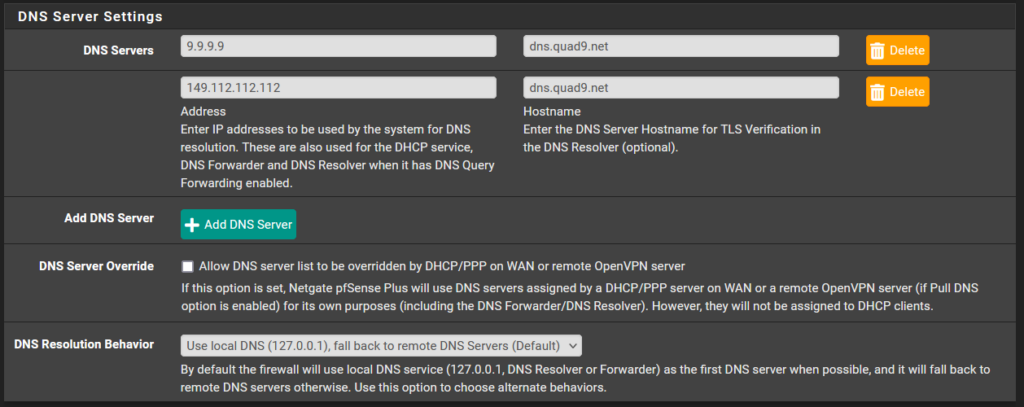
Menu System – General Setup

  1. Access General Setup:
    Log in to your pfSense web interface and navigate to System > General Setup.
  2. Update Primary DNS Server:
    In the “DNS Server Settings” section, locate the primary DNS server. Change the IP address to 9.9.9.9 and set the hostname to dns.quad9.net.
  3. Configure Secondary DNS Server:
    For the secondary DNS server, set the IP address to 149.112.112.112 and the hostname to dns.quad9.net.
  4. DNS Resolution Behavior:
    Ensure that the “DNS resolution Behavior” is set to Use local DNS, fall back to remote DNS servers (default).
  5. IPv6 Configuration (Optional):
    If you’re not using IPv6, you can skip the IPv6 configuration settings in the General Setup.

Menu Services – DNS Resolver – General Settings

  1. Enable DNS Resolver:
    Go to Services > DNS Resolver and ensure that the Enable checkbox is selected.
  2. SSL/TLS Certificate:
    Keep the default SSL/TLS Certificate setting, as it is set to the webConfigurator default.
  3. Network Interfaces:
    Under “Network Interfaces,” select All to allow DNS resolution on all available interfaces.
  4. Outgoing Network Interfaces:
    Choose WAN as the outgoing network interface for DNS queries.
  5. System Domain Local Zone Type:
    Set the “System Domain Local Zone Type” to Transparent.
  6. DNSSEC Configuration:
    Since Quad9 already uses DNSSEC, you don’t need to enable DNSSEC in the pfSense settings.
  7. Enable Forwarding Mode:
    Make sure that “Enable Forwarding Mode” is enabled. This allows Unbound to forward DNS queries to external DNS servers like Quad9.
  8. SSL/TLS for Outgoing DNS Queries:
    Enable the “Use SSL/TLS for outgoing DNS Queries to Forwarding Servers” option. This ensures encrypted communication between pfSense and Quad9.

Conclusion:

Setting up the DNS Resolver (Unbound) in pfSense to use Quad9 is a straightforward process that enhances your network’s security and privacy. By following the steps outlined in this guide, you’ve configured your pfSense firewall to route DNS queries through Quad9’s secure and reliable servers. With a strong emphasis on protecting user data and thwarting malicious activities, Quad9 ensures a safer online experience for you and your network users. Now you can enjoy faster, more secure, and private browsing while benefiting from the robust capabilities of pfSense and Quad9.

Remember, the digital landscape is constantly evolving, and staying proactive about your network’s security is paramount. Periodically revisit your DNS resolver settings and consider exploring other security-enhancing features within pfSense to ensure your network remains protected.


Strengthen Your Network Security with Essential pfSense Packages

Title: Strengthen Your Network Security with Essential pfSense Packages

Introduction

In today’s digital age, network security is paramount for safeguarding sensitive data and protecting against various cyber threats. pfSense, an open-source firewall and router platform, offers a wide range of packages to enhance the security of your network. In this blog post, we will explore four powerful pfSense packages – pfBlockerNG-devel, Service Watchdog, System Patches, and Tailscale – that can fortify your network defenses and ensure a safer online environment for your organization or home network.

  1. pfBlockerNG-devel: The Ultimate DNS Firewall

One of the most critical aspects of network security is controlling and filtering DNS traffic. pfBlockerNG-devel is an advanced package for pfSense that acts as a DNS firewall, allowing you to block malicious domains, advertisements, and other unwanted content. With its versatile features, pfBlockerNG-devel enables you to create custom blocklists, white-lists, and even implement IP address and geo-blocking rules. By leveraging DNSBL (DNS Block List) technology, this package keeps your network safe from phishing attempts, malware distribution, and other cyber threats.

  1. Service Watchdog: Ensuring Uninterrupted Services

In a robust network infrastructure, it’s essential to maintain uptime and availability of critical services. Service Watchdog is a pfSense package designed to monitor and automatically restart services that may experience failures. Whether it’s a web server, VPN, or any other service, Service Watchdog constantly monitors their status and takes corrective actions when issues arise. By implementing this package, you can minimize service disruptions, thwart potential downtime, and ensure seamless operation of vital services.

  1. System Patches: Keeping Up with Security Updates

Staying up-to-date with security patches is crucial in defending against vulnerabilities and exploits. System Patches is a pfSense package that simplifies the process of applying system-level patches, including security updates and bug fixes. It ensures that your pfSense installation is current and fortified against known security threats. Regularly updating your pfSense system with System Patches significantly reduces the risk of potential breaches and enhances overall network security.

  1. Tailscale: Securely Connecting Remote Networks

In today’s work environment, remote connectivity is more critical than ever. Tailscale, a modern and easy-to-use VPN solution, provides secure and private network connections for remote devices. As a pfSense package, Tailscale allows you to set up a secure mesh network, ensuring that authorized devices can access resources securely from anywhere, without exposing them to the open internet. Tailscale uses strong encryption and authentication methods, making it an excellent choice for organizations seeking a safe and reliable VPN solution.

Conclusion

In conclusion, securing your network is a continuous process that requires the right tools and strategies. By leveraging pfSense packages like pfBlockerNG-devel, Service Watchdog, System Patches, and Tailscale, you can significantly enhance your network security posture. These packages enable you to fortify your defenses against malicious content, ensure uninterrupted service availability, stay up-to-date with security patches, and securely connect remote networks.

As cyber threats continue to evolve, it is essential to adapt your network security measures accordingly. By incorporating these powerful pfSense packages into your infrastructure, you are taking proactive steps to safeguard your network and protect your sensitive data from potential cyber attacks. Remember, network security is a shared responsibility, and continuous vigilance is key to maintaining a safe and resilient network environment.


pfSense vs. OPNsense: Elevating Home Firewall Security

Introduction

In the age of increasing cyber threats and privacy concerns, it has become crucial for individuals to secure their home networks. While most people rely on default routers provided by their Internet Service Providers (ISPs), these devices often lack essential features and may not receive timely updates. In this blog post, we will explore two powerful open-source firewall solutions, pfSense and OPNsense, and the compelling reasons to use them to fortify your home network’s security.

  1. Comprehensive Security Features

Unlike default routers, pfSense and OPNsense are specialized firewall distributions based on FreeBSD. They offer a plethora of advanced security features that go beyond the capabilities of regular consumer-grade routers. These include stateful packet filtering, intrusion detection/prevention, Virtual Private Network (VPN) support, DNS filtering, and more. By employing these robust features, users can effectively protect their networks from malicious activities and unauthorized access.

  1. Regular Updates and Security Patches

One of the most significant drawbacks of using default routers is the infrequent or non-existent software updates. Cyber threats evolve rapidly, and without timely updates, your router becomes vulnerable to new exploits and vulnerabilities. Both pfSense and OPNsense have active communities that continuously work on improving the security and stability of their platforms. Regular updates ensure that your firewall remains up-to-date with the latest security patches, safeguarding your home network from potential threats.

  1. Flexibility and Customization

One of the key advantages of open-source solutions like pfSense and OPNsense is their high level of flexibility and customization options. Users can tailor their firewall settings and rules according to their specific needs, creating a personalized security infrastructure. Whether it’s setting up VLANs for segmented networks, creating access controls, or integrating third-party plugins, the ability to customize your firewall enhances the overall security posture of your home network.

  1. Enhanced VPN Capabilities

In today’s interconnected world, the need for secure remote access is more prominent than ever. Both pfSense and OPNsense offer powerful VPN capabilities, allowing users to establish secure connections between remote devices and the home network. Whether you need to access your home resources while traveling or want to encrypt your online activities, these firewall solutions provide a reliable and straightforward VPN setup.

  1. Community Support and Documentation

pfSense and OPNsense boast vibrant communities that actively contribute to user forums, offer advice, and share their expertise. If you encounter any issues or need guidance on setting up specific features, chances are you’ll find a wealth of information through their community support channels. Furthermore, both projects maintain extensive documentation, making it easier for users to understand and utilize the vast array of features these firewalls offer.

  1. Transparency and Open-Source Assurance

Default routers typically run on closed-source firmware, making it challenging for users to scrutinize the code for potential security flaws or backdoors. In contrast, pfSense and OPNsense are open-source projects, which means their source code is publicly available for review by anyone. This level of transparency fosters trust among users, ensuring that there are no hidden vulnerabilities or privacy concerns within the firewall software.

Conclusion

In conclusion, upgrading from a default router to a robust and feature-rich firewall like pfSense or OPNsense can significantly enhance your home network’s security. By leveraging their comprehensive security features, receiving regular updates, and enjoying the flexibility of customization, you can better protect your network and data from potential cyber threats. Additionally, the strong community support, extensive documentation, and open-source assurance offer an added layer of confidence in the security of these firewall solutions. So, why settle for an outdated and vulnerable router when you can empower your home network with the cutting-edge protection of pfSense or OPNsense?