Windows 11 update KB5063878 – why you should remove it

Microsoft’s August 2025 update KB5063878 for Windows 11 has quickly gained a bad reputation. Reports from users worldwide confirm that this patch can cause serious SSD and HDD issues, including:

  • Drives disappearing completely during large file transfers
  • Partitions suddenly showing up as RAW and unreadable
  • Potential data corruption after heavy workloads

Sources like Tom’s Hardware and Windows Latest confirm that Microsoft and SSD makers are now investigating the problem.


What you should do

  1. Uninstall KB5063878

    • Open Settings → Windows Update → Update history → Uninstall updates and remove it.
    • Or run this in an elevated Command Prompt: wusa /uninstall /kb:5063878 /quiet /norestart

  2. Pause Updates
    To prevent the update from returning, go to Windows Update and set a 5-week pause. This gives Microsoft time to issue a fixed patch.
  3. Stay Safe

    • Keep backups of important data.
    • Avoid large SSD transfers (>50 GB) until Microsoft resolves the bug.

Removing KB5063878 is currently the safest choice if you rely on your SSD for daily work. Pausing updates for a few weeks ensures your system stays stable until a corrected update arrives.

The problem is not limited to external drives – it also affects internal boot NVMe SSDs. If your system disk is NVMe, it could become unstable after installing KB5063878.

Sometimes the best update is no update at all – at least until Microsoft fixes it.

Knud ;O)

PS. A safer choise in the future is changing to Linux ;O))


Automatically switch Raspberry HDMI between MagicMirror2 and a desktop

Running a MagicMirror on a Raspberry Pi alongside a desktop PC? Tired of manually changing inputs when the PC boots or shuts down? Here’s a simple Bash script plus systemd service that:

  • Blanks the Pi’s HDMI output whenever your desktop (IP 192.168.0.114) is up
  • Restores the Pi’s HDMI when the desktop shuts down

Prerequisites

1. Create the Bash Script

Save the following as /home/pi/autoHDMI.sh and make it executable:

#!/bin/bash
# autoHDMI.sh — turn Pi HDMI off/on based on desktop presence

DESKTOP_IP="192.168.0.114"    # ← your desktop’s IP
INTERVAL=10                   # seconds between checks

hdmi_off=0
while true; do
  if ping -c1 -W1 "$DESKTOP_IP" &>/dev/null; then
    if [[ $hdmi_off -eq 0 ]]; then
      /usr/bin/vcgencmd display_power 0    # blank HDMI
      hdmi_off=1
    fi
  else
    if [[ $hdmi_off -eq 1 ]]; then
      /usr/bin/vcgencmd display_power 1    # restore HDMI
      hdmi_off=0
    fi
  fi
  sleep "$INTERVAL"
done
chmod +x /home/pi/autoHDMI.sh

2. Test the Commands Manually

Before automating, confirm the blank/unblank work:

# Blank the HDMI output
sudo vcgencmd display_power 0

# Restore it
sudo vcgencmd display_power 1

If you see your monitor lose signal on “0” and regain it on “1,” you’re good to go.

3. Automate with systemd

Create the service file at /etc/systemd/system/autoHDMI.service:

[Unit]
Description=Auto‑HDMI switching (Pi ↔ Desktop)
After=network-online.target
Wants=network-online.target

[Service]
User=pi
ExecStart=/home/pi/autoHDMI.sh
Restart=always
RestartSec=5

[Install]
WantedBy=multi-user.target

Enable and start it:

sudo systemctl daemon-reload
sudo systemctl enable --now autoHDMI.service

4. How It Works

  1. Ping check every 10 s (ping -c1 -W1) returns exit code 0 if the desktop answers https://ss64.com/bash/ping.html
  2. Blank: when the desktop is up, the script runs vcgencmd display_power 0
  3. Restore: when the desktop goes down, it runs vcgencmd display_power 1
  4. Your monitor, set to Auto‑select input, sees “no signal” on HDMI 1 and switches to your desktop (HDMI 2). When the Pi’s HDMI returns, it flips back to MagicMirror.

5. We run an X‑screen / LXDE

Source: Raspberry Pi forum thread on disabling blanking with xset (forums.raspberrypi.com)

I stopped my MagicMirror Pi’s X screen from going black by editing the LXDE autostart file and adding three xset lines.

Full file with the changes:

# /etc/xdg/lxsession/LXDE-pi/autostart        
@lxpanel --profile LXDE-pi
@pcmanfm --desktop --profile LXDE-pi
point-rpi

# keep the X‑screen awake
@xset s noblank     # no blanking
@xset s off         # disable screensaver


Reboot and the display stays on permanently.

Conclusion

With this setup, your MagicMirror display takes over whenever your desktop is off, and your PC display reclaims the screen as soon as it’s available—no manual input switching needed!

Windows 10/11 and SMB guest access

Windows SMB change and how to lock down your Raspberry Pi with SMB3 encryption:

Windows 10/11 and SMB guest access
Starting with Windows 10 version 1709 (Fall Creators Update) and all Windows 11 releases, Microsoft disabled unauthenticated “guest” access over SMB2 and SMB3 by default to block insecure, unencrypted logons (MKS Technology Inc)
URL: https://support.microsoft.com/en-us/help/4046019/guest-access-in-smb2-disabled-by-default-in-windows-10-and-windows-server-2016

Configuring your Raspberry Pi for SMB3-only, encrypted shares
Samba ≥ 4.2 (your 4.17.12 build included) fully supports SMB 3.x and on-the-wire encryption (Server Fault)
URL: https://serverfault.com/questions/913504/samba-smb-encryption-how-safe-is-it

Replace your /etc/samba/smb.conf with this:

[global]
   workgroup = WORKGROUP
   netbios name = raspberrypi
   server string = Raspberry Pi SMB3 Encrypted
   security = user
   map to guest = never
   usershare allow guests = no
   guest account = nobody

   server min protocol = SMB3
   server max protocol = SMB3
   client min protocol = SMB3
   client max protocol = SMB3
   smb encrypt = required

[data]
   comment = Encrypted SMB3 Share
   path = /data
   browseable = yes
   writable = yes
   valid users = pi
   create mask = 0775
   directory mask = 0775

  1. Prepare the share directory and permissions: sudo mkdir -p /data sudo chown pi:pi /data sudo chmod 775 /data
  2. Add pi as an SMB user: sudo smbpasswd -a pi
  3. Apply changes: sudo systemctl restart smbd

This forces only SMB 3.x connections with required encryption, and only user pi can connect (Server Fault)
URL: https://serverfault.com/questions/895570/how-to-configure-samba-to-work-with-windows-10-1709

Verifying your setup

With these steps, your Windows 10/11 systems stay locked against guest shares, and your Raspberry Pi serves its data only over encrypted SMB 3 connections.


Keep your PC safe and updated with “winget”

Windows now has a powerful package manager called winget, which makes it super easy to update all your installed applications with just one click – just like on Linux!

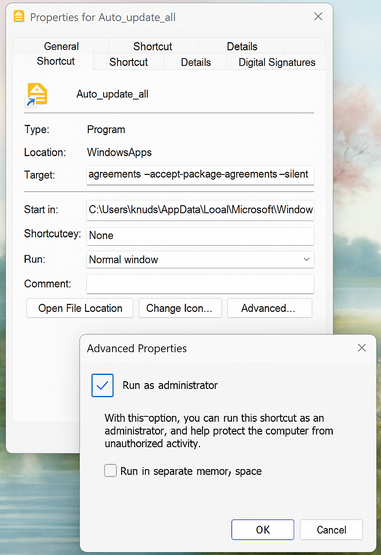
I’ve created a shortcut on my desktop that automatically updates everything silently:

C:\Users\knuds\AppData\Local\Microsoft\WindowsApps\winget.exe upgrade --all --accept-source-agreements --accept-package-agreements --silent

🔒 I run the shortcut as administrator, so it installs updates without asking for permission.

Here’s how it looks:
My shortcut and settings


Exclude programs from updating – like Microsoft Office Enterprise

If your company manages software like Microsoft Office, you don’t want winget to update it. Luckily, you can “pin” apps to prevent updates.

📌 To pin (lock) Office so it won’t update:

winget pin add --id Microsoft.Office

🔓 To unpin (unlock) it again:

winget pin remove --id Microsoft.Office

To see all pinned apps:

winget pin list

Final Tips

✅ Run Windows Update regularly
✅ Use winget upgrade --all to keep your apps secure
✅ Use pinning to protect company-managed software

With this simple shortcut and a few commands, you’ll keep your system secure and fully up to date – with no effort.

You can also use winget to install programs ;O)


AI Agents with n8n

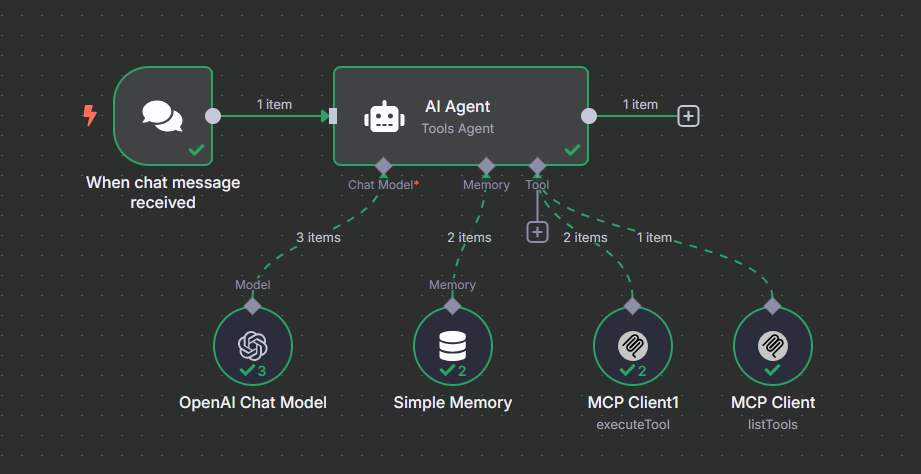
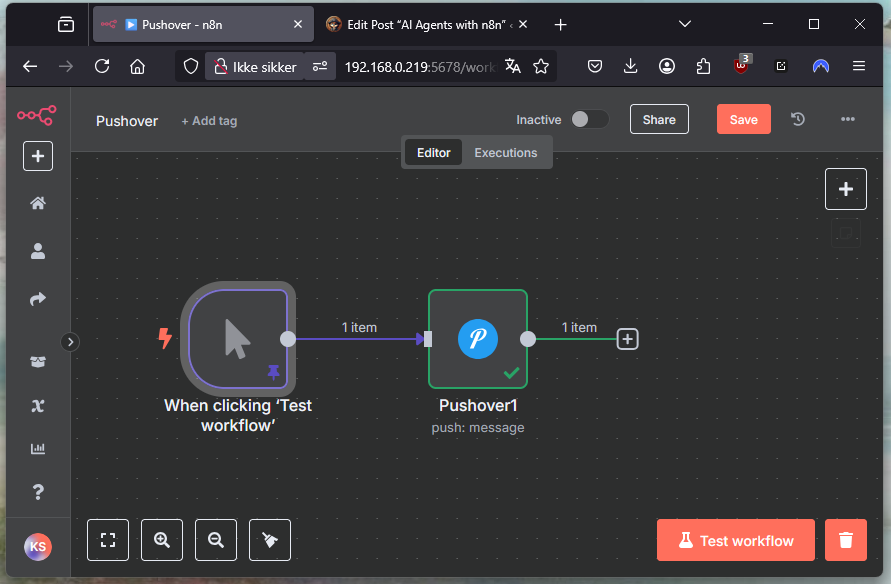
Want to automate tasks in your homelab or explore what AI agents can do? n8n is a free, open-source automation tool that runs perfectly on a Raspberry Pi 5. With it, you can build smart workflows that connect APIs, trigger actions, and even control AI agents like ChatGPT.

What You Can Do with n8n

  • Trigger AI responses with webhooks
  • Connect apps like Gmail, Telegram, or Google Sheets
  • Automate reports, alerts, backups, and file processing
  • Build AI workflows that take action on your data

No coding is required, but you can use JavaScript and expressions if you want more control.


Install n8n on Raspberry Pi 5 (with Docker)

1. Install Docker

sudo curl -fsSL https://get.docker.com -o get-docker.sh 
sudo sh get-docker.sh
sudo reboot

2. Add User to Docker Group

sudo groupadd docker && sudo usermod -aG docker $USER
sudo reboot

3. (Optional) Install Portainer for GUI Management

docker run -d -p 9000:9000 --name=portainer --restart=always --pull=always \
  -v /var/run/docker.sock:/var/run/docker.sock \
  -v /data/portainer_data:/data \
  portainer/portainer-ee:latest

4. Prepare Data Folders

sudo mkdir -p /data/n8n_data /data/compose/n8n
sudo chmod -R 777 /data

5. Create docker-compose.yml

Save this in /data/compose/n8n/docker-compose.yml:

services:
  n8n:
    image: n8nio/n8n:latest
    restart: always
    ports:
      - "5678:5678"
    environment:
      - TZ=Europe/Copenhagen
      - N8N_BASIC_AUTH_ACTIVE=true
      - N8N_BASIC_AUTH_USER=admin
      - N8N_BASIC_AUTH_PASSWORD=xxxxxxxxxxxx
      - N8N_HOST=10.168.0.277
      - N8N_PORT=5678
      - N8N_SECURE_COOKIE=false
    volumes:
      - /data/n8n_data:/home/node/.n8n

⚠️ Replace the IP address with your Raspberry Pi’s actual IP.

6. Launch n8n

cd /data/compose/n8n
docker compose up -d

Now open your browser:

http://10.168.0.277:5678


n8n + AI agents = powerful automation. Run it in your homelab and take full control of your workflows.


Running Windows 11 in Docker on a ZimaBoard

Recently, I explored a fascinating way to run Windows 11 directly within a Docker container on my ZimaBoard. This setup uses the dockurr/windows Docker image, which makes it surprisingly simple to virtualize a full version of Windows for testing purposes.

Setting Up Windows 11 on Docker

To set up Windows 11 in Docker, you will need to create a docker-compose.yml file with the following configuration:

services:
  windows:
    image: dockurr/windows
    container_name: windows
    environment:
      VERSION: "11"
    devices:
      - /dev/kvm
      - /dev/net/tun
    cap_add:
      - NET_ADMIN
    ports:
      - 8006:8006
      - 3389:3389/tcp
      - 3389:3389/udp
    volumes:
      - /data/windows11_data:/storage
    stop_grace_period: 2m

Key Steps to Prepare:

  1. Create the Storage Folder: mkdir -p /data/windows11_data
  2. Deploy the Container: docker-compose up -d

This setup will pull the Windows 11 ISO directly from Microsoft servers and begin the installation within the container.

Versions Available

You can specify different versions by changing the VERSION parameter in the docker-compose.yml file. Here are the available versions:

  • 11 – Windows 11 Pro (5.4 GB)
  • 11l – Windows 11 LTSC (4.2 GB)
  • 11e – Windows 11 Enterprise (5.8 GB)
  • 10 – Windows 10 Pro (5.7 GB)
  • 10l – Windows 10 LTSC (4.6 GB)
  • 10e – Windows 10 Enterprise (5.2 GB)
  • And many more, including Windows Server versions.

Accessing Windows 11 in the Browser

You can view and interact with the Windows 11 installation in a web browser using the following link:

http://192.168.0.215:8006/?resize=scale&reconnect=true&autoconnect=true

Alternatively, you can use Remote Desktop (mstsc) to connect to the container via port 3389.

Persistent Storage and Licensing

  • Storage: The /data/windows11_data volume ensures persistent storage, meaning you can install software and perform tests.
  • License: A valid Windows license key is still required for activation.

Important Note About Updates

The Windows installation is based on an ISO downloaded during the initial setup. Therefore, updating the container image itself will not update Windows. To receive the latest version, you would need to delete the persistent storage and reinstall the container.


My Experience and Recommendation

I tested this setup on my ZimaBoard, and while it worked, the performance was limited due to the hardware constraints. For a smoother experience, I recommend running Windows 11 on a more powerful Proxmox server with direct virtualization support.

This method of running Windows in Docker provides an interesting alternative for temporary tests, development environments, and isolated Windows instances. It’s great to see how flexible Docker has become, even for complex operating systems like Windows.

Stay tuned for more experiments and technical insights on my homepage!


Troubleshooting Network Issues on a Raspberry Pi with pfSense

Troubleshooting Network Issues on a Raspberry Pi with pfSense

Recently, I encountered a network connectivity issue with my Raspberry Pi running Raspberry Pi OS Bookworm, where the device was not receiving an IP address from my pfSense router’s DHCP server. After some investigation and adjustments, I was able to resolve the problem successfully. Here’s a detailed blog post to help others facing similar challenges.

Initial Symptoms

The issue was that my Raspberry Pi, connected via a wired Ethernet connection, was not receiving an IP address from my pfSense DHCP server. The default DHCP client, dhcpcd, was active and causing conflicts. Although NetworkManager was installed, it was not active, leading to further issues.

Diagnosing the Issue

Step 1: Check Network Interface Status

I began by checking the network interface status using:

nmcli device status

The output revealed that eth0 was connected but not receiving an IP address.

Step 2: Verify IP Assignment

To verify whether the Raspberry Pi was assigned an IP address, I used:

ip a show eth0

The result showed an IP address (192.168.0.224) and a valid lease from the pfSense DHCP server.

Step 3: Confirm the Default Gateway

Next, I checked the default gateway configuration:

ip route

The default route correctly pointed to the pfSense router at 192.168.0.1.

Changing DHCP Client to NetworkManager

The default DHCP client on Raspberry Pi OS Bookworm is dhcpcd, which can cause conflicts. To switch to NetworkManager, I used:

sudo raspi-config

I navigated to Advanced Options > Network Config > NetworkManager, selected it, and rebooted the Raspberry Pi. This change resolved the DHCP conflict and allowed the device to obtain an IP address correctly.

Testing Network Connectivity

Ping Test

I ran a basic connectivity test:

ping 8.8.8.8
ping google.com

Both tests were successful, indicating no connectivity issues.

Resolving the Issue

The issue was resolved by disabling dhcpcd and enabling NetworkManager using sudo raspi-config. No further DNS changes were required as the default settings pointed correctly to the pfSense router.

Conclusion

After switching to NetworkManager using sudo raspi-config, my Raspberry Pi successfully received a DHCP lease from the pfSense router, and the network connectivity was fully restored. If you’re experiencing similar issues, following these steps can help identify and resolve the problem effectively.

Feel free to share your own network troubleshooting experiences or reach out for further assistance!


Optimizing pfSense WAN Stability: Adjusting dpinger Monitoring IP

When managing a pfSense firewall, maintaining a stable WAN connection is crucial for ensuring uninterrupted internet access. One common issue users face is the dpinger gateway monitor mistakenly marking the WAN as down, leading to unnecessary failovers or service disruptions. This often happens when the default monitor IP (usually the ISP’s gateway) becomes temporarily unreachable, even if the internet connection is still active.

Why Change the dpinger Monitor IP?

The default setup typically monitors the ISP’s gateway. However, this gateway might not always be reliable, leading to false positives where pfSense incorrectly detects a WAN failure. By changing the monitor IP to a more reliable and globally accessible IP address, such as Cloudflare’s 1.1.1.1 or Google’s 8.8.8.8, you can minimize the risk of unnecessary downtime.

How to Change the dpinger Monitor IP

  1. Access pfSense Interface:

  • Log in to the pfSense web interface.

  1. Modify Gateway Settings:

  • Navigate to System > Routing, then go to the Gateways tab.
  • Edit your WAN gateway by clicking the pencil icon.

  1. Set a New Monitor IP:

  • In the Monitor IP field, enter 1.1.1.1 (or another reliable IP).
  • Save and apply the changes.

Benefits of Using a Reliable Monitor IP

Switching to a well-known IP like 1.1.1.1 enhances the reliability of your gateway monitoring, ensuring that dpinger only triggers alerts or actions when there’s a genuine WAN issue. This adjustment helps maintain a more stable network environment, particularly in scenarios where the WAN connection is critical.

Final Thoughts

For many pfSense users, changing the dpinger monitor IP is a simple yet effective tweak to ensure WAN stability. It’s a proactive step to prevent false alarms and ensure that your firewall is performing optimally. Remember, while this solution works for most setups, always monitor the performance after making changes to ensure it suits your specific environment.

This adjustment is particularly useful for those experiencing frequent, unwarranted WAN down notifications and can significantly improve network reliability.

By making this small change, you can help ensure your pfSense firewall continues to provide robust, uninterrupted protection for your network.


By following these steps, you can enhance the reliability of your pfSense setup, minimizing unnecessary disruptions and keeping your network running smoothly. For more detailed discussions and user experiences, you might want to visit pfSense forums or review the official documentation.


Exciting Announcement: New Kubernetes Cluster on Raspberry Pi

I’m thrilled to announce the successful installation of a brand-new Kubernetes cluster on four Raspberry Pi devices! This project, utilizing Bookworm, Ansible, and NFS, showcases the potential of combining powerful software tools with the versatility of Raspberry Pi hardware.

Project Details

Hardware Setup:

  • Devices: 4 Raspberry Pi 4 units
  • Storage: M.2 256GB USB drives (superior to traditional SD cards for reliability and speed)
  • Networking: A small network switch for robust cabled connections

Software Stack:

  • Operating System: Raspberry Pi OS 64-bit Lite (Bookworm)
  • Automation: Ansible for automated and consistent setup
  • Storage: NFS for shared, reliable storage

Installation Overview

The installation process is impressively quick and efficient, taking about 30 minutes from start to finish:

  • 15 minutes: Installing the OS and necessary dependencies using Ansible
  • 15 minutes: Setting up Kubernetes with one master and three nodes, including auto-provisioned storage via NFS

Services Deployed

As part of this new installation, several key services have already been deployed on the cluster using kubectl:

  • Portainer: For managing Kubernetes environments
  • NetAlert: For network monitoring
  • Prometheus and Grafana: For monitoring and visualization
  • Minecraft Server: For gaming and experimentation
  • Homepage Dashboard: For a personalized user interface
  • Searxng: For metasearch engine capabilities

What’s Next?

In the coming days, I will be posting detailed guides and Ansible scripts for setting up these services on my homepage. These resources will include step-by-step instructions to help you replicate this setup and customize it for your own needs.

Stay tuned for more updates and detailed tutorials on my homepage. This new installation demonstrates the impressive capabilities of Kubernetes on Raspberry Pi, and I’m excited to share more about this journey with you.

Thank you for your interest, and look forward to the upcoming posts with detailed guides and scripts!


pfSense+ ver. 24.09: Recovering from a Firmware Upgrade Mishap on My Netgate SG-1100

Upgrading the firmware of a device usually promises enhancements and bug fixes, but it can sometimes lead to unexpected complications, as was the case with my recent experience upgrading my Netgate SG-1100 from version 23.09 to 24.03. Typically, a firmware upgrade takes around 15-20 minutes, during which I ensured I had a backup in place, following best practices.

However, this time around, the upgrade did not go as planned, and I found myself reaching for my serial cable, downloading balenaEtcher and PuTTY, and preparing for a manual recovery. I reached out to Netgate support, who guided me through the process of downloading the latest firmware. The process was straightforward: log into the Netgate store, add the firmware to your cart, and download it at no additional cost.

Using balenaEtcher, I wrote the firmware image to a USB stick, then connected it to my device. With my serial cable attached and PuTTY configured (COM3, 115200 speed, 8 data bits, 1 stop bit, no parity, and no flow control).
I followed the detailed installation instructions provided by Netgate, which are available here.

During this ordeal, I was grateful for my backup Internet solutions, including a home fiber connection and mobile Internet. I had a secondary router ready—a Zimaboard running pfSense Community Edition—which not only got me back online quickly but also, surprisingly, performed faster than the SG-1100.

This experience reinforced the value of having a backup router and the practicality of using pfSense Community Edition for personal use. For businesses, however, I would still recommend investing in a Netgate device with the Plus version for additional support.

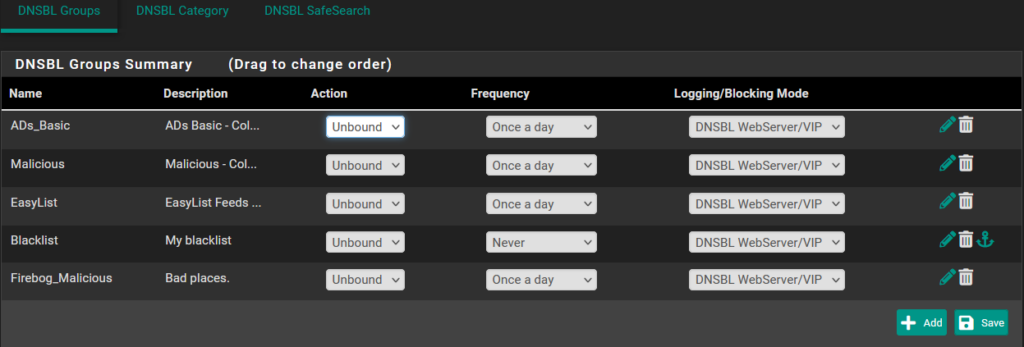
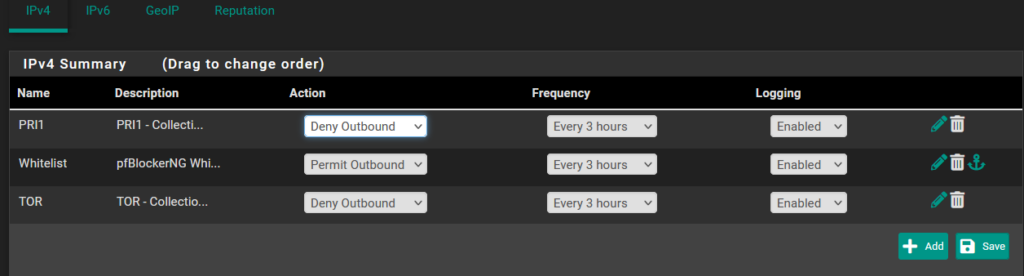
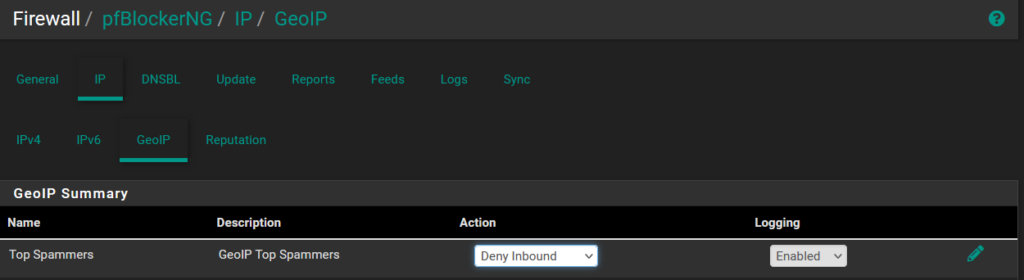
Once I resolved the initial issues, restored my settings, and confirmed everything was operational, I decided to keep the Netgate SG-1100 as a backup device while continuing to use my Zimaboard. This incident highlighted a compatibility issue with pfBlockerNG-devel and the new firmware on the small Netgate SG-1100, which was resolved by switching back to the stable version of pfBlockerNG.

Always having a backup plan and knowing how to manually recover your device’s firmware are invaluable, as Internet connectivity is crucial in today’s world. The ability to troubleshoot and restore functionality with minimal downtime is not just convenient; it is essential.

Knud ;O)